
Run Chatla from ChatGPT and Claude
Chatla’s MCP server connects ChatGPT, Claude and other MCP-compatible AI apps to your Chatla account. The connected AI reads conversations, manages leads, fills in the catalog and knowledge base and prepares reply drafts — but never messages your customers on its own.
What MCP is and what it gives you
MCP (Model Context Protocol) is an open standard for connecting AI apps to external services. Chatla supports it: you type in plain language in a ChatGPT or Claude chat, for example “which conversations are waiting for an operator today?”, and the AI answers from your real data in Chatla.
The biggest win is setup time. Hand the AI a price list, a PDF or your website text and it writes the catalog and Q&A for you; you only approve.
Server address
https://chatla.uz/api/mcpConnect Claude — 7 steps
Works on Free, Pro, Max, Team and Enterprise (Free allows one connector). Same in the browser, desktop and mobile app.
- 1
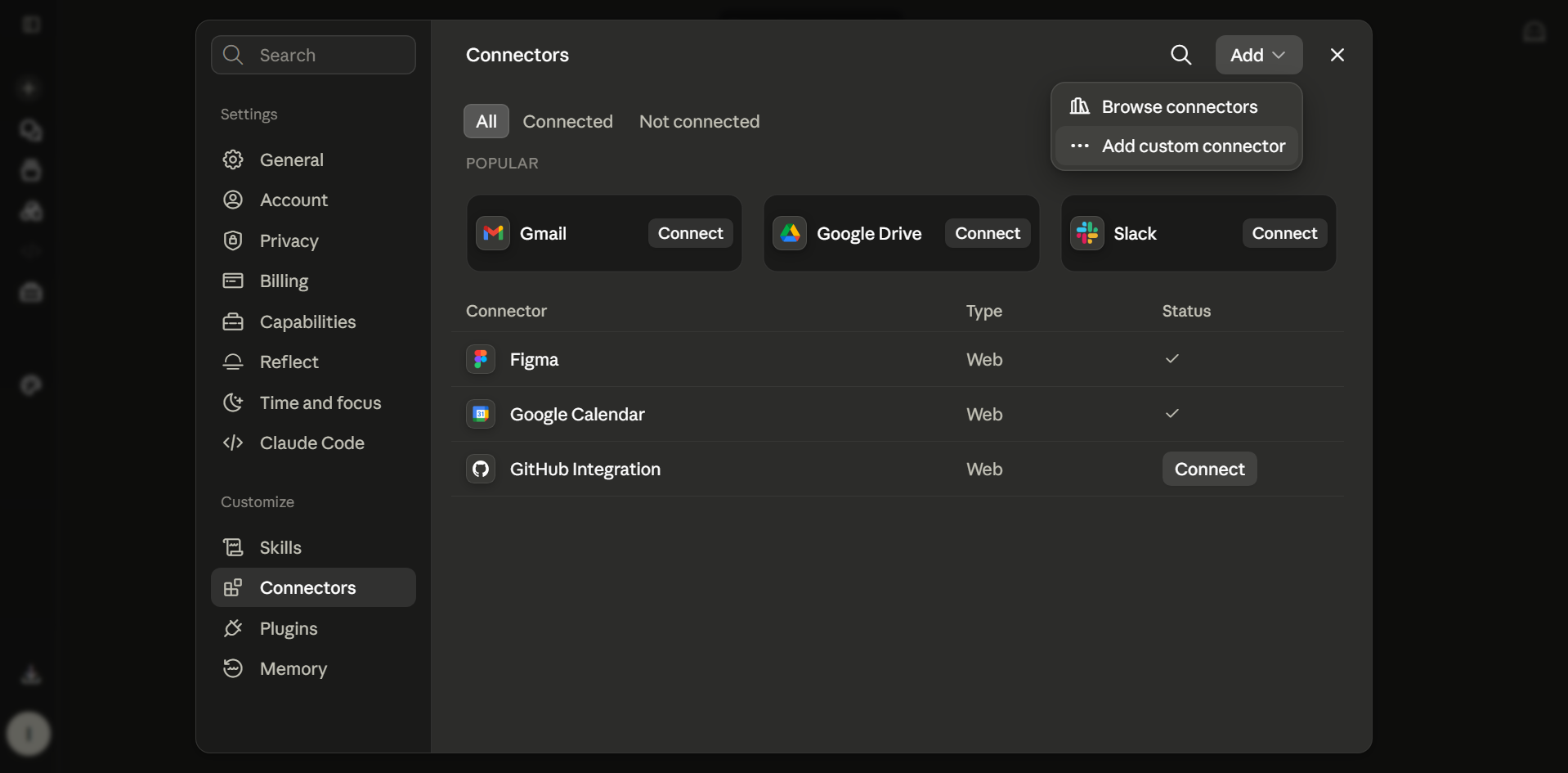
Settings → Connectors
In Claude open Settings → Connectors, press «Add» in the top right and choose «Add custom connector».
- 2
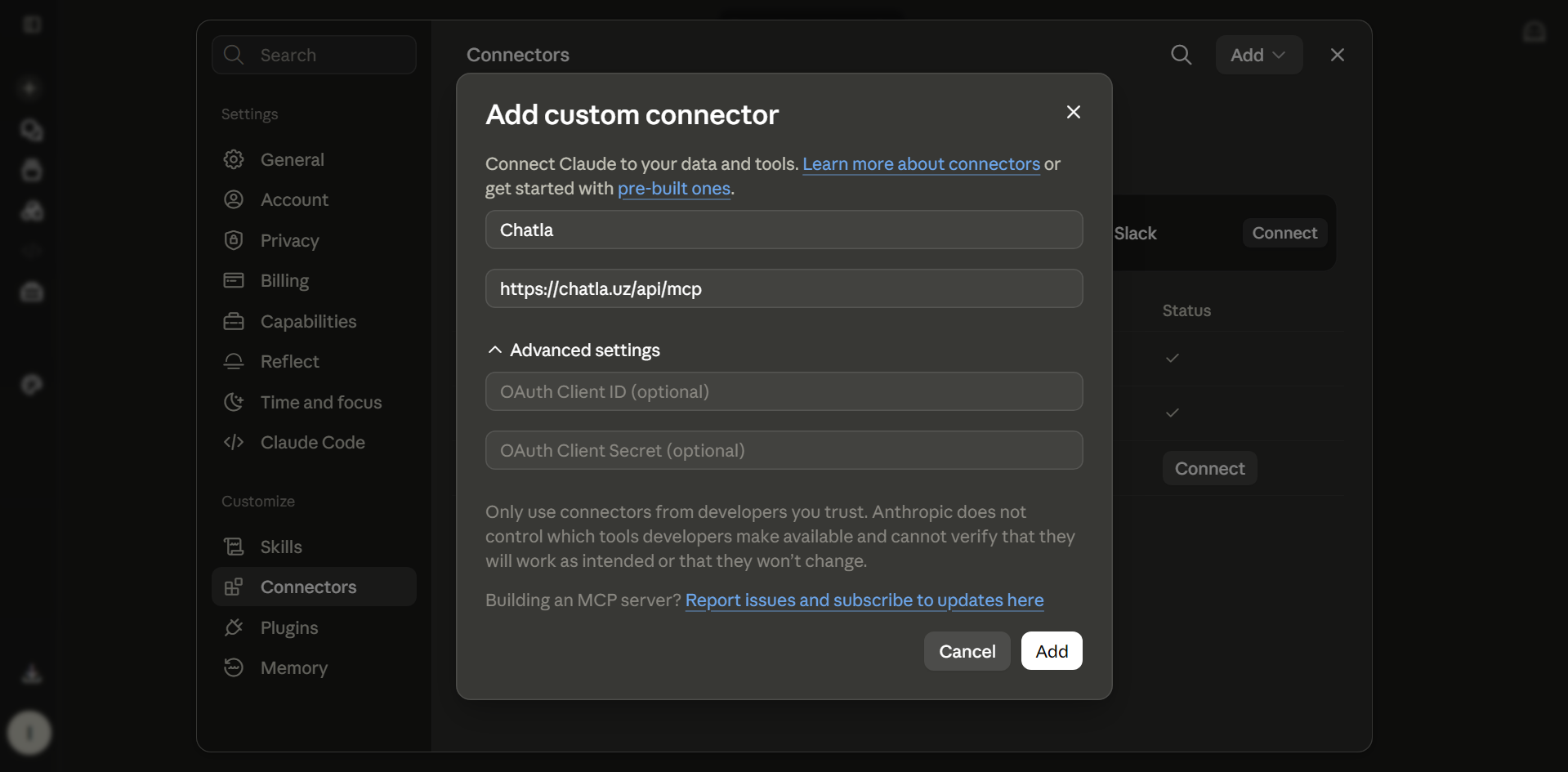
Name and address
Type «Chatla» in the first field and paste the address into the second one. Leave the OAuth fields empty and press «Add».
- 3
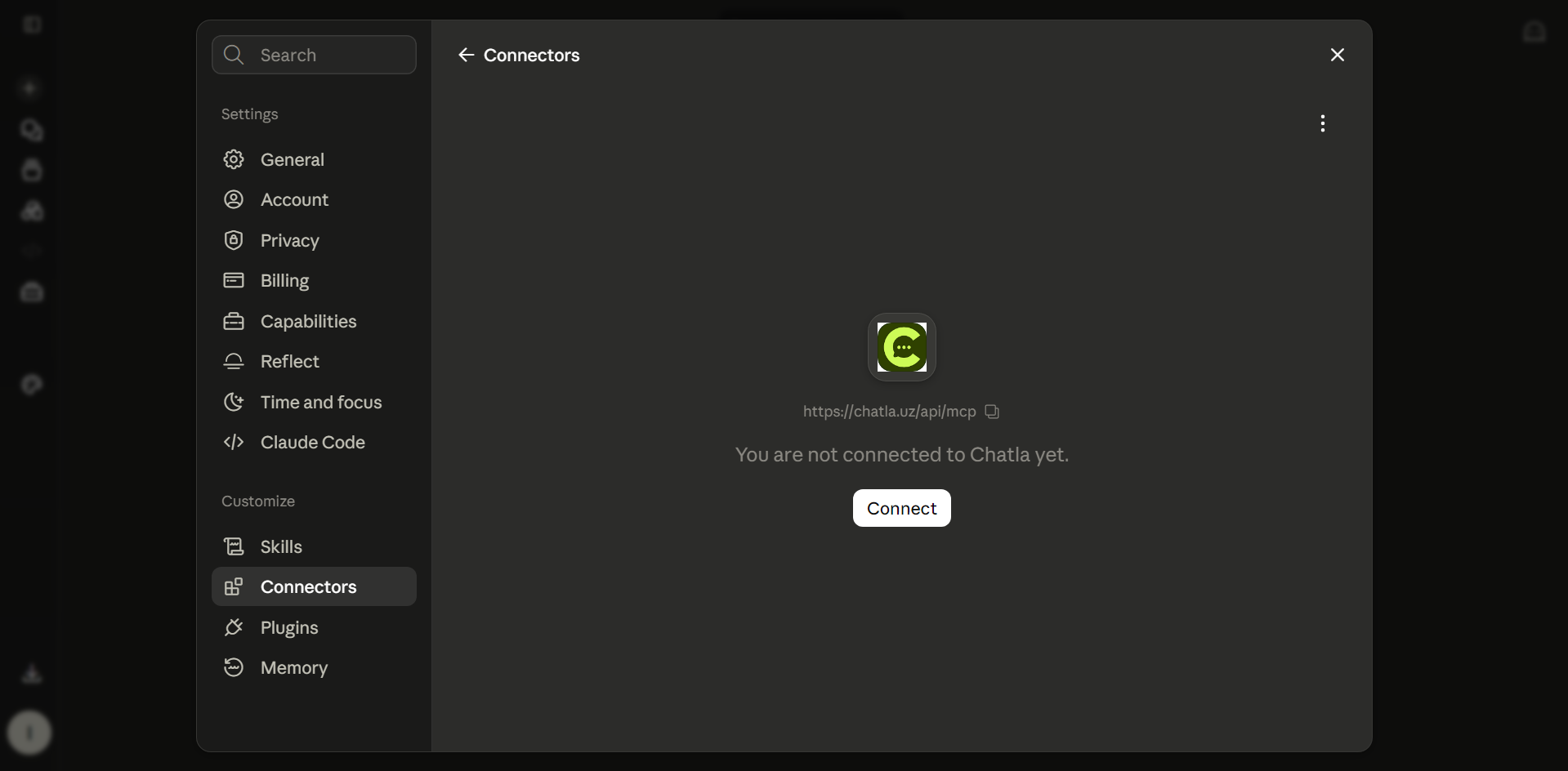
The «Connect» button
The Chatla card opens saying «You are not connected to Chatla yet». Press «Connect».
- 4
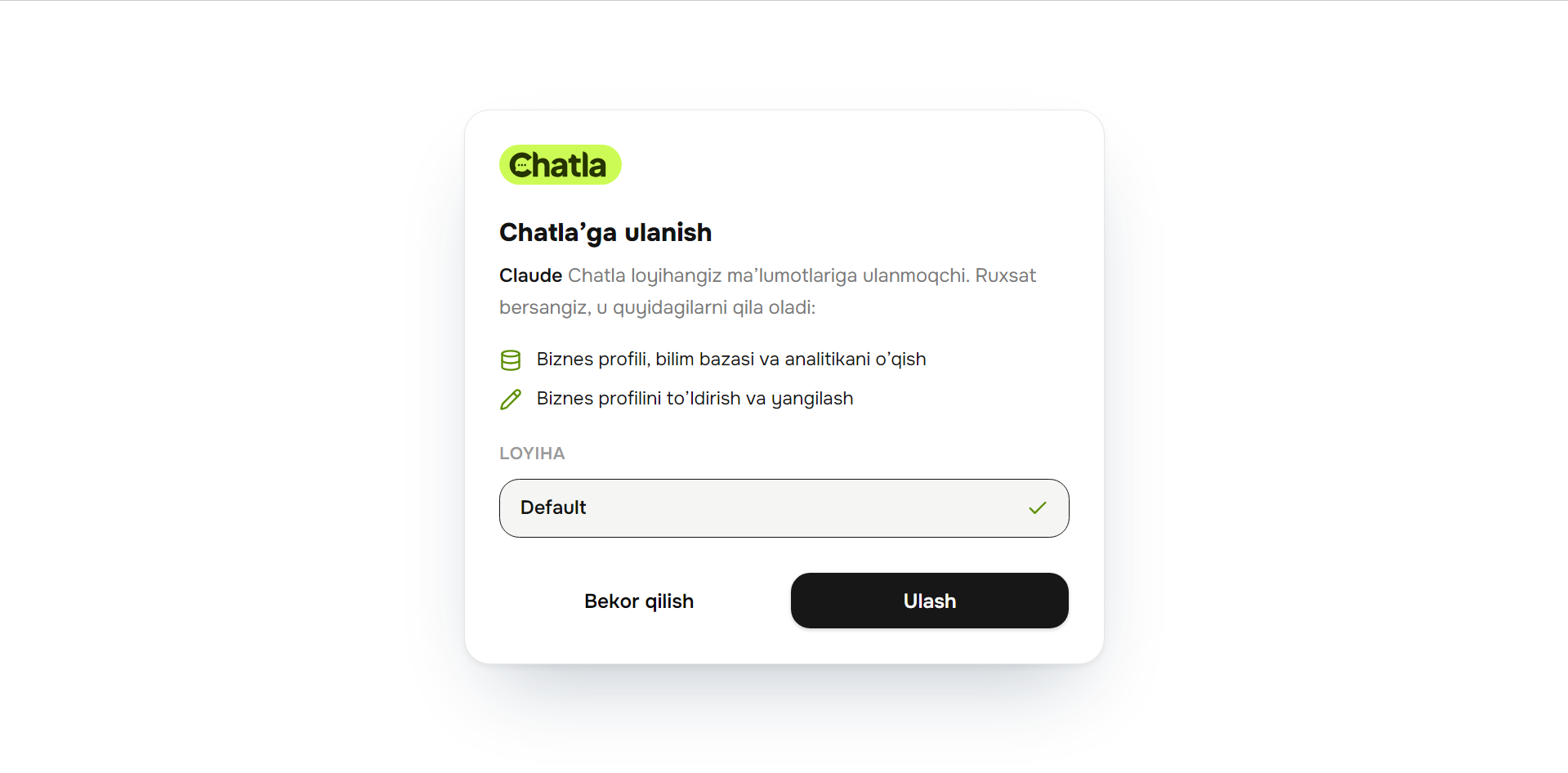
Pick the project
A Chatla window opens listing what Claude will be able to do. Select the project and press «Connect».
- 5
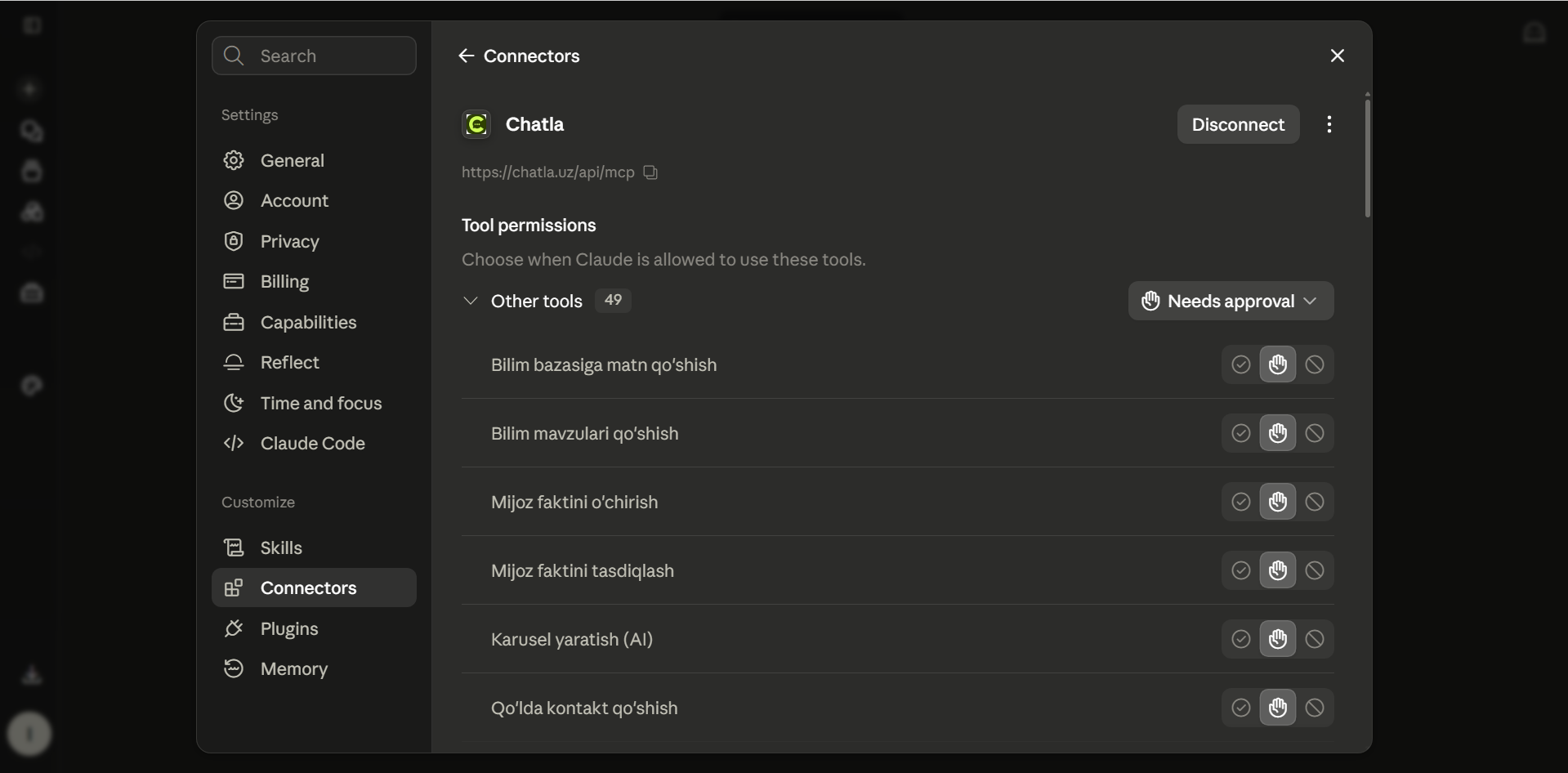
Done — 49 actions
Every action shows up in the list. «Needs approval» means Claude asks you before each one; you can switch the ones you trust to automatic later.
- 6
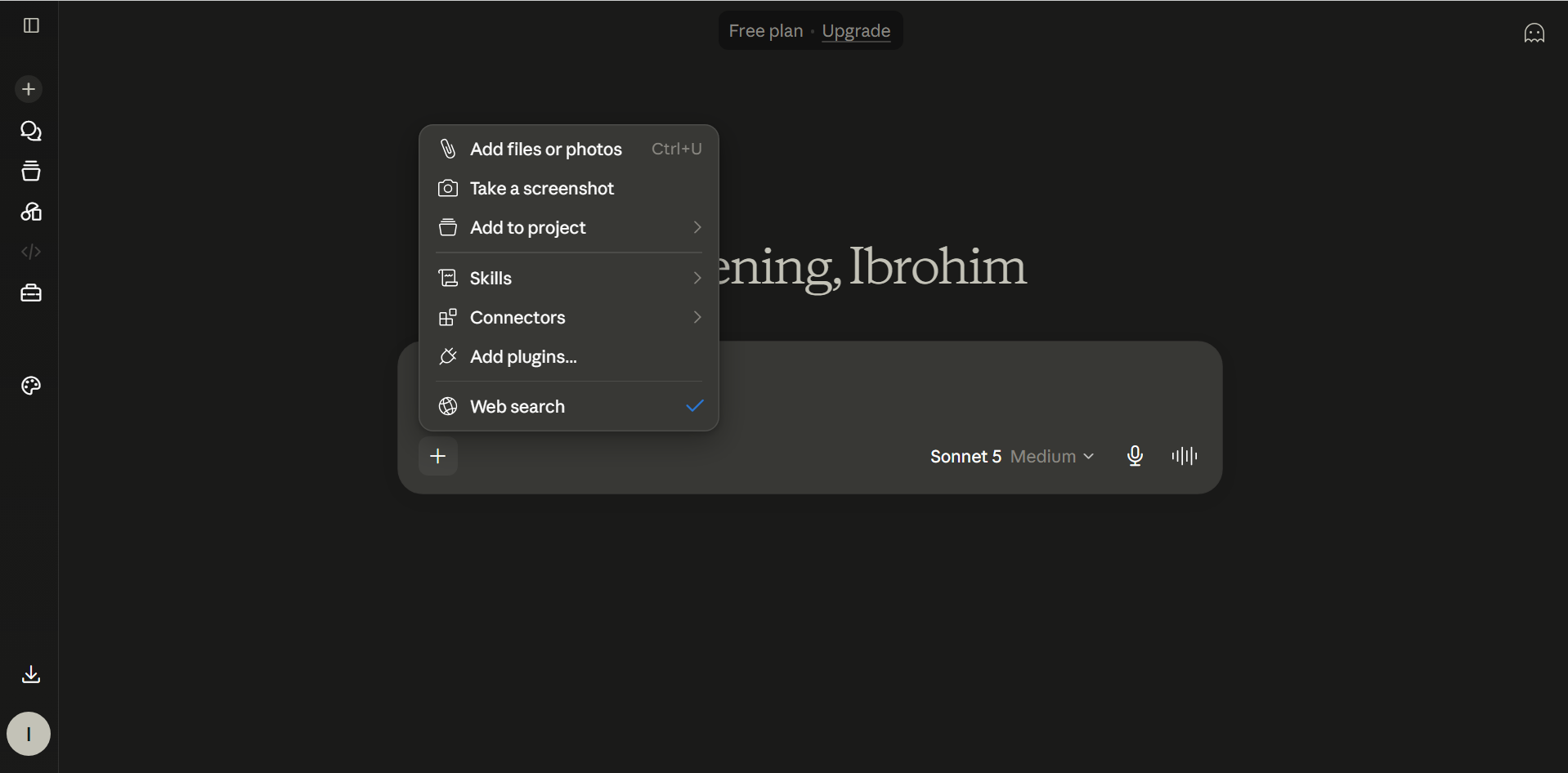
Check it in a chat
In a new chat press «+» in the message box → «Connectors» → make sure Chatla is on.
- 7
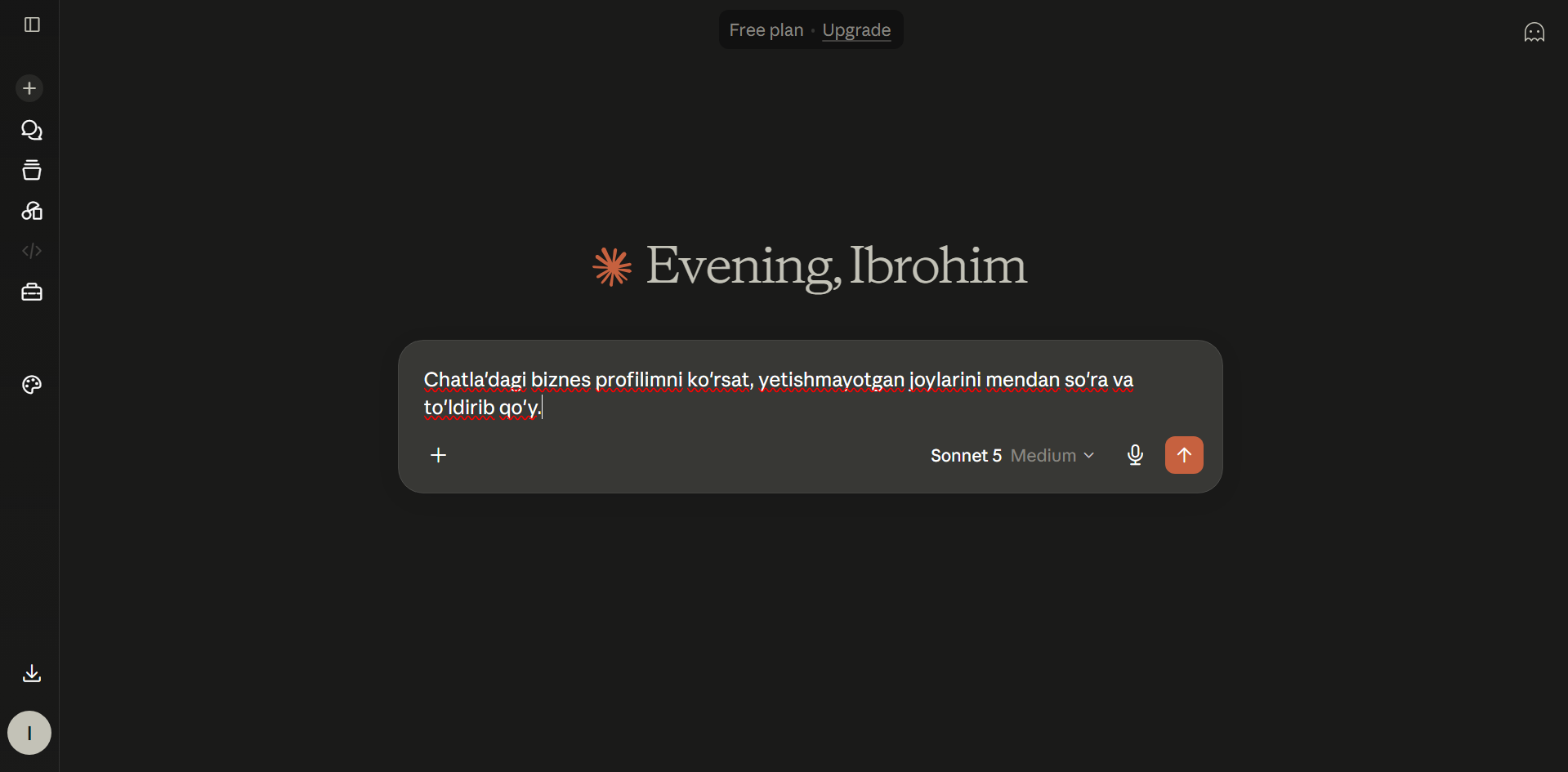
Your first request
Just write in plain language — for example: «Show my Chatla business profile, ask me for what is missing and fill it in».
Connect ChatGPT — 8 steps
Turn on developer mode first — without it the custom-connector dialog does not appear. OpenAI changes the plan requirements from time to time.
- 1
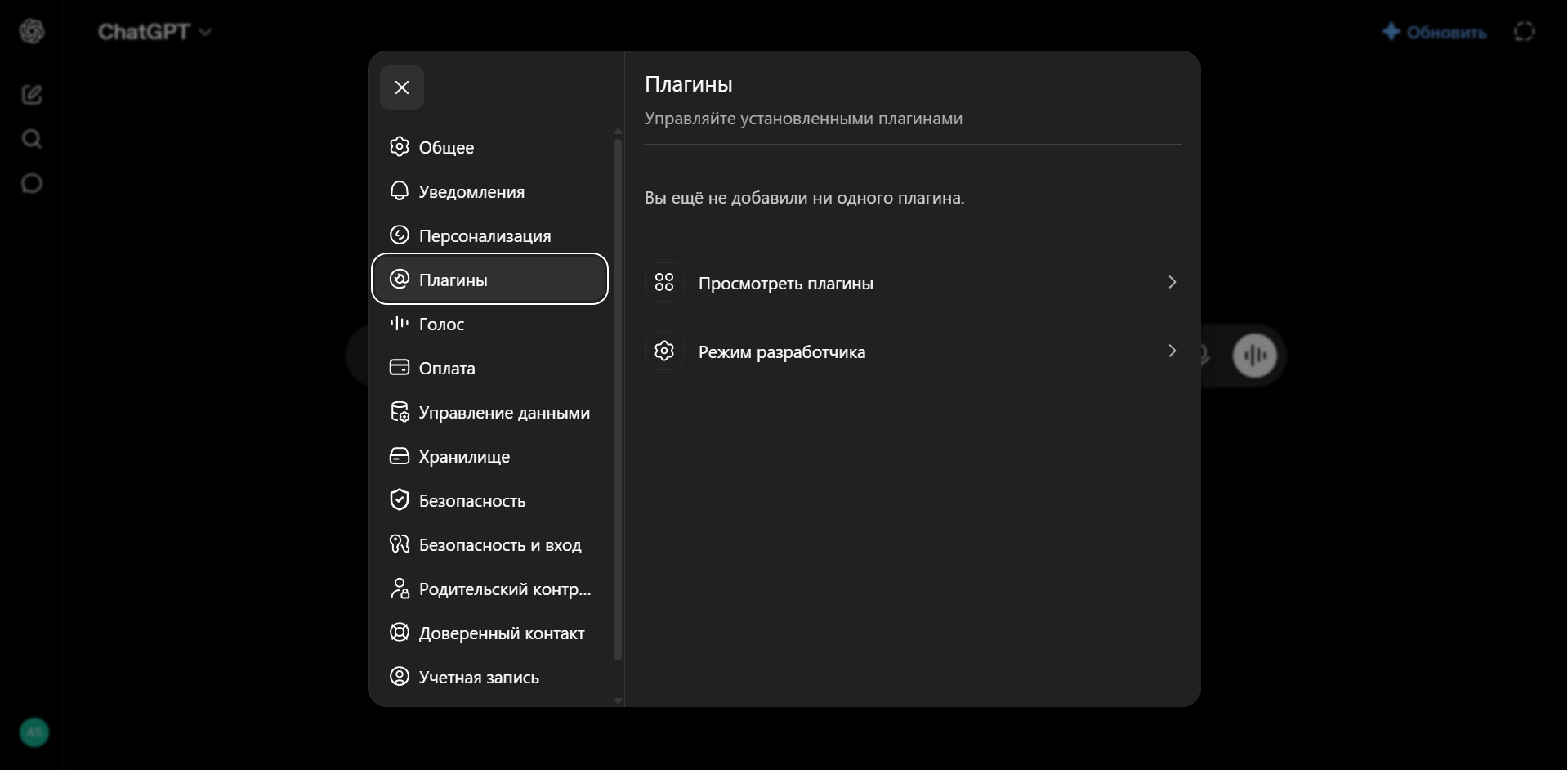
Settings → Plugins
In ChatGPT settings open the «Plugins» («Плагины») section.
- 2
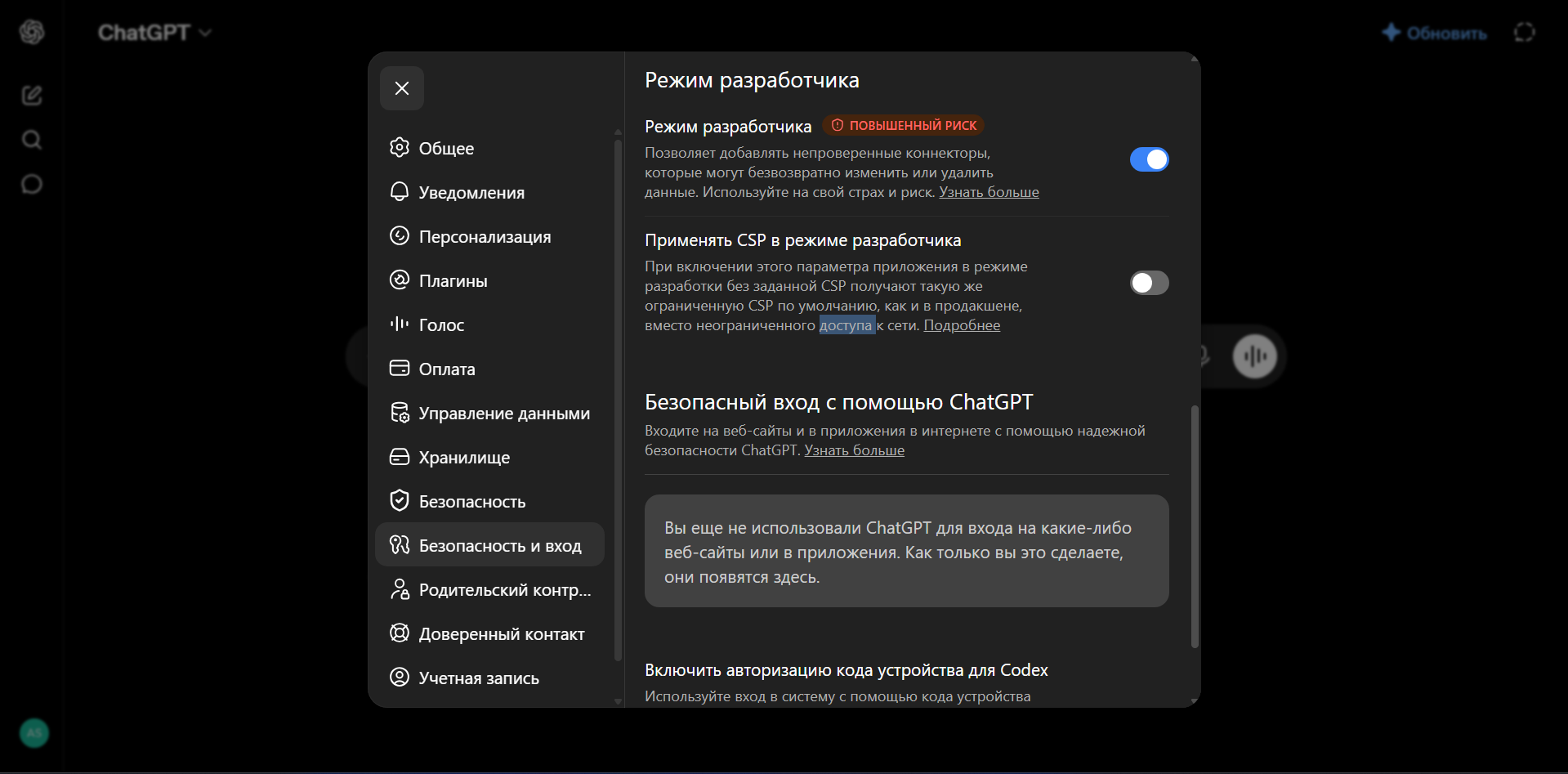
Turn on developer mode
«Developer mode» («Режим разработчика») → flip the switch. The warning is about connectors OpenAI has not reviewed.
- 3
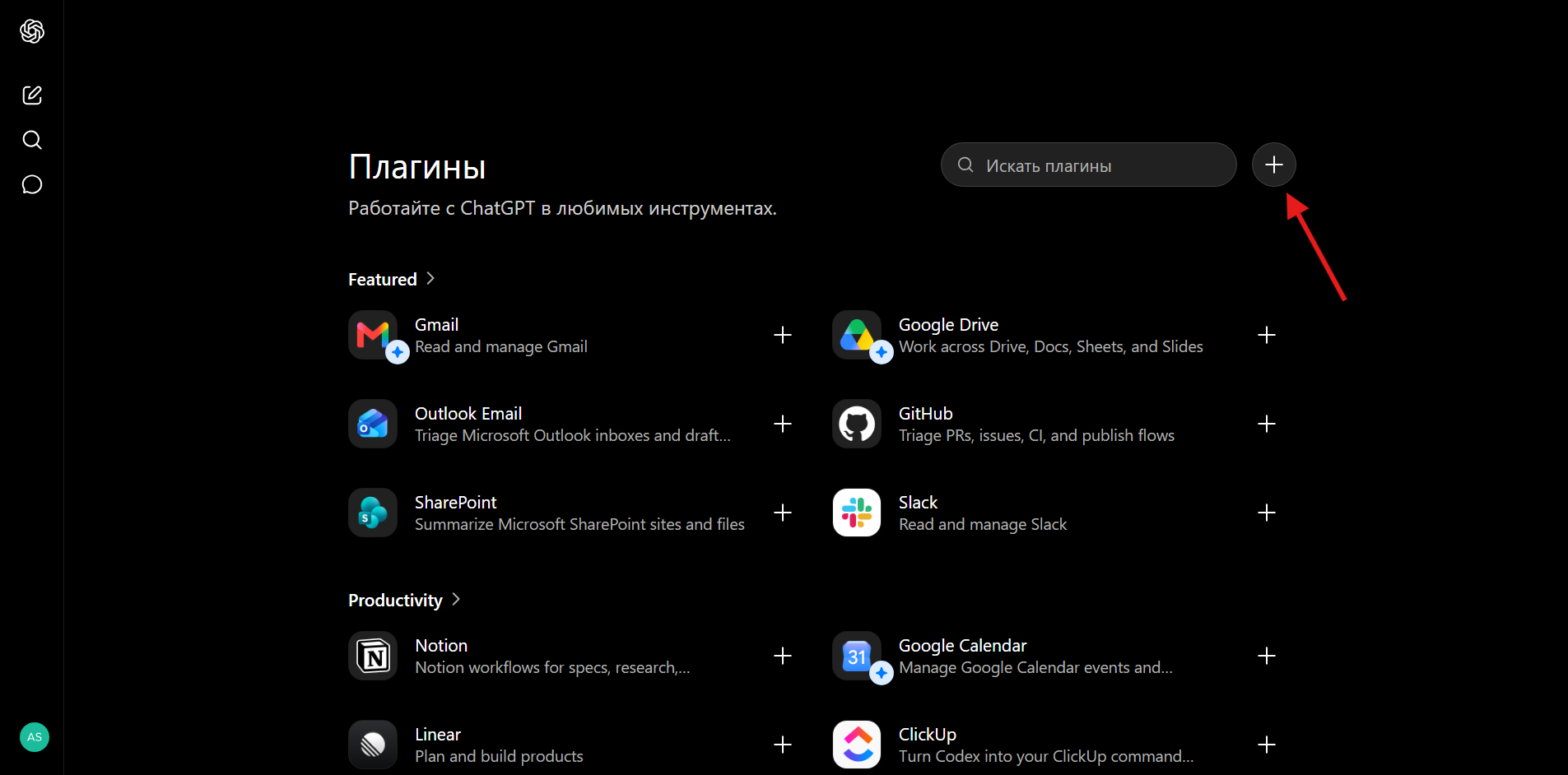
Add a new plugin
On the Plugins page press «+» in the top right.
- 4
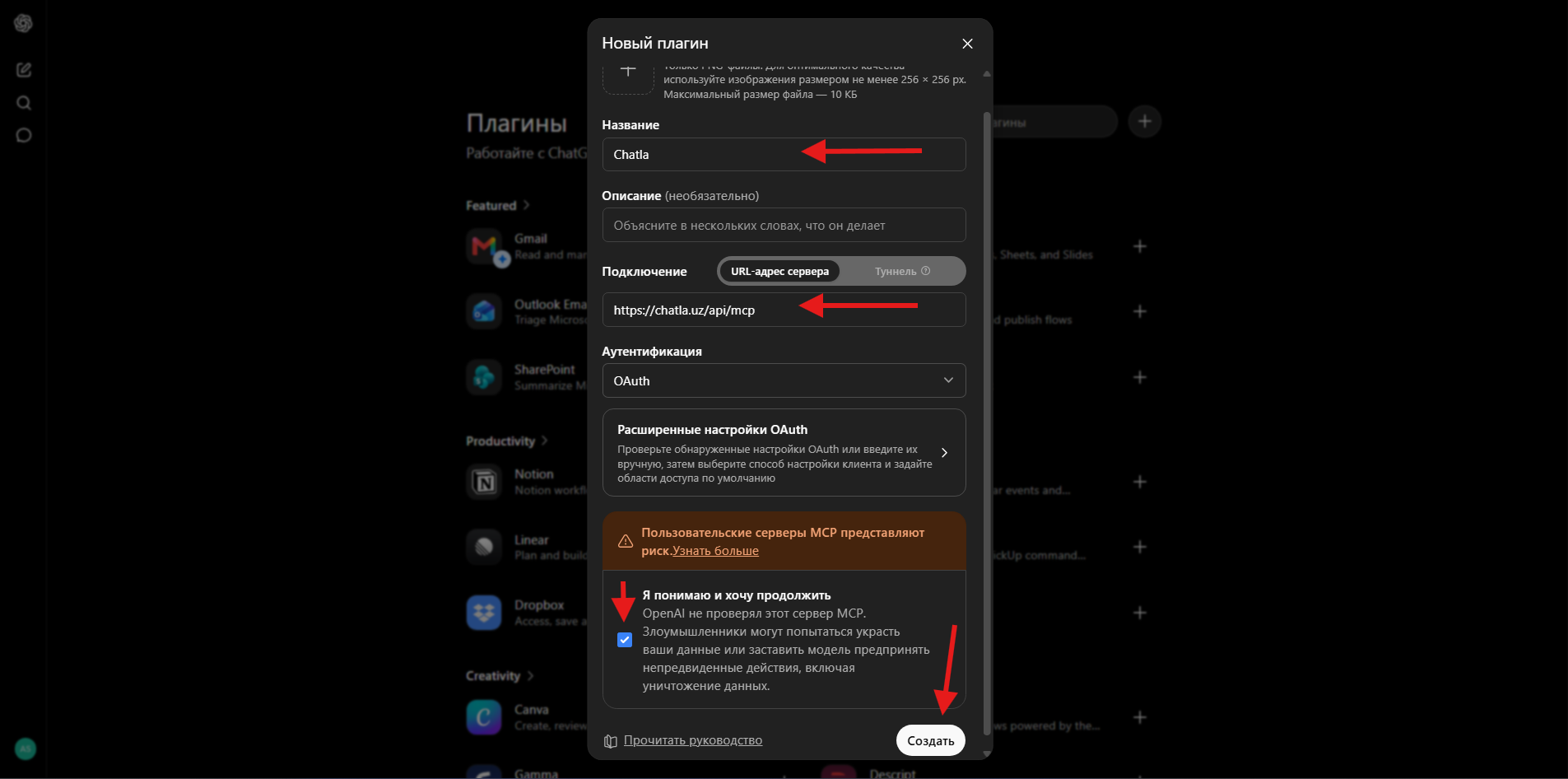
Name, address, OAuth
Name it «Chatla», paste the address into the server URL field and set authentication to «OAuth». Tick the consent box and press «Create».
- 5
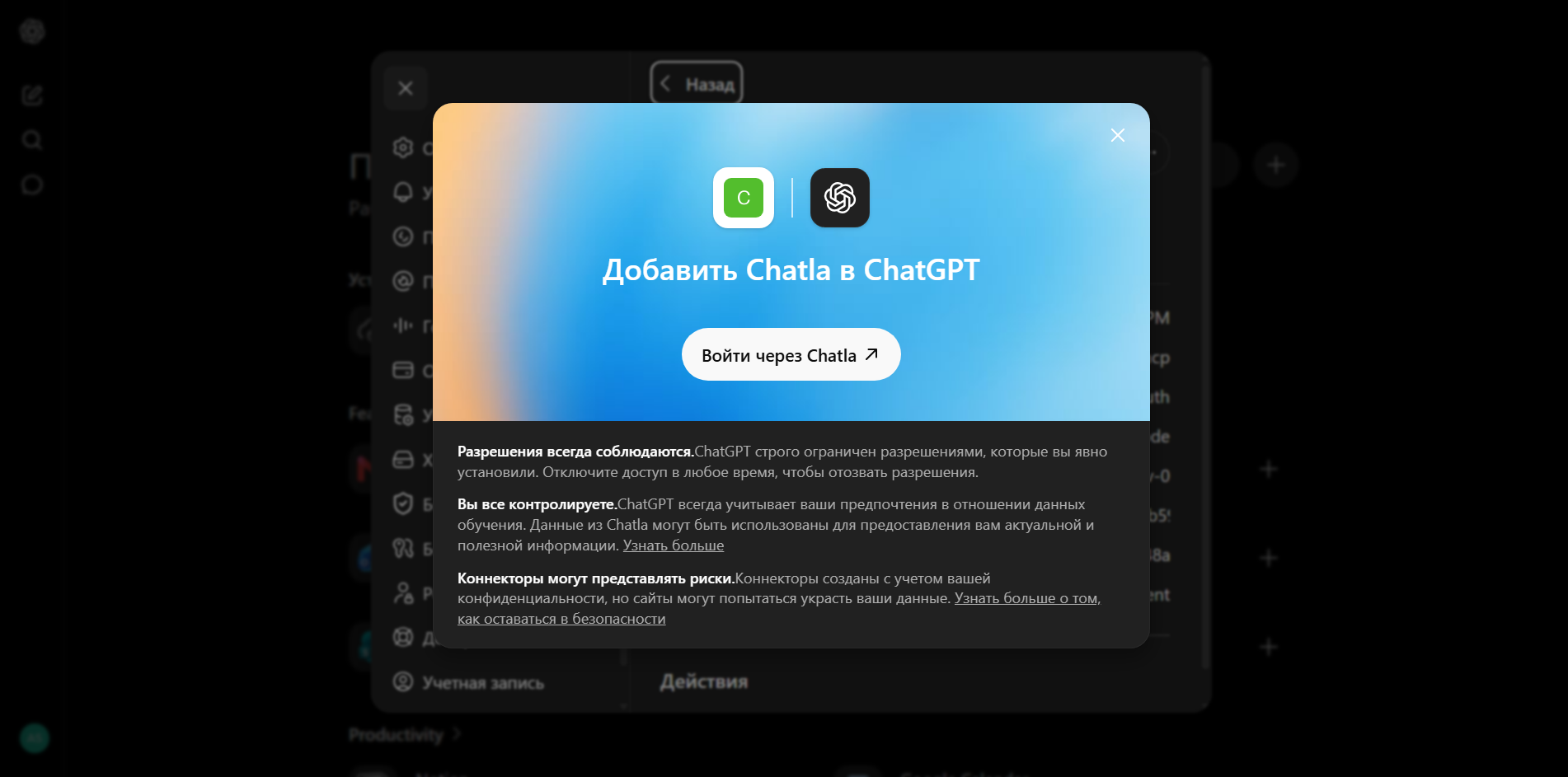
«Sign in with Chatla»
The «Add Chatla to ChatGPT» window appears — press the sign-in button.
- 6
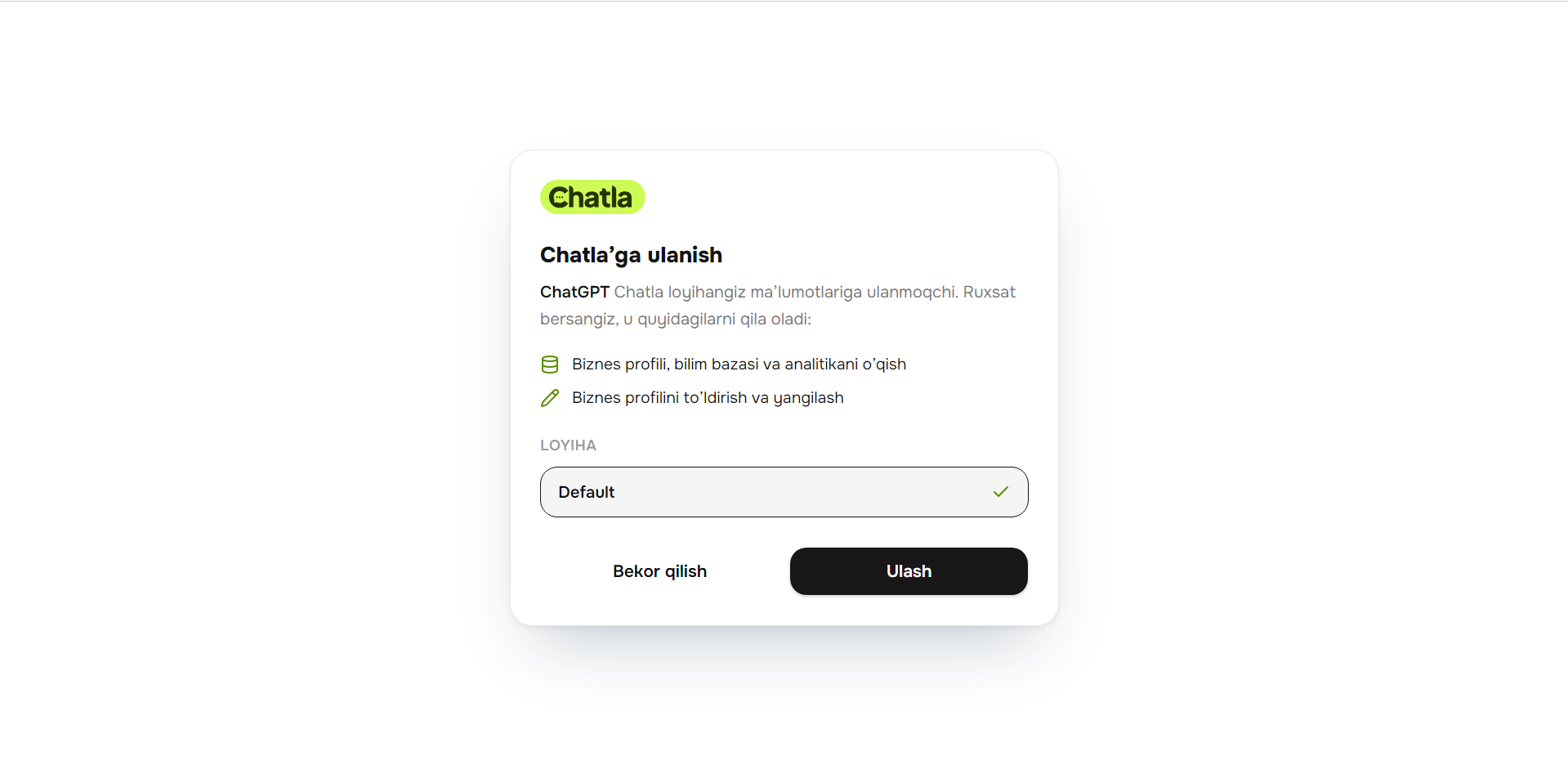
Pick the project
In the Chatla window select the project and press «Connect».
- 7
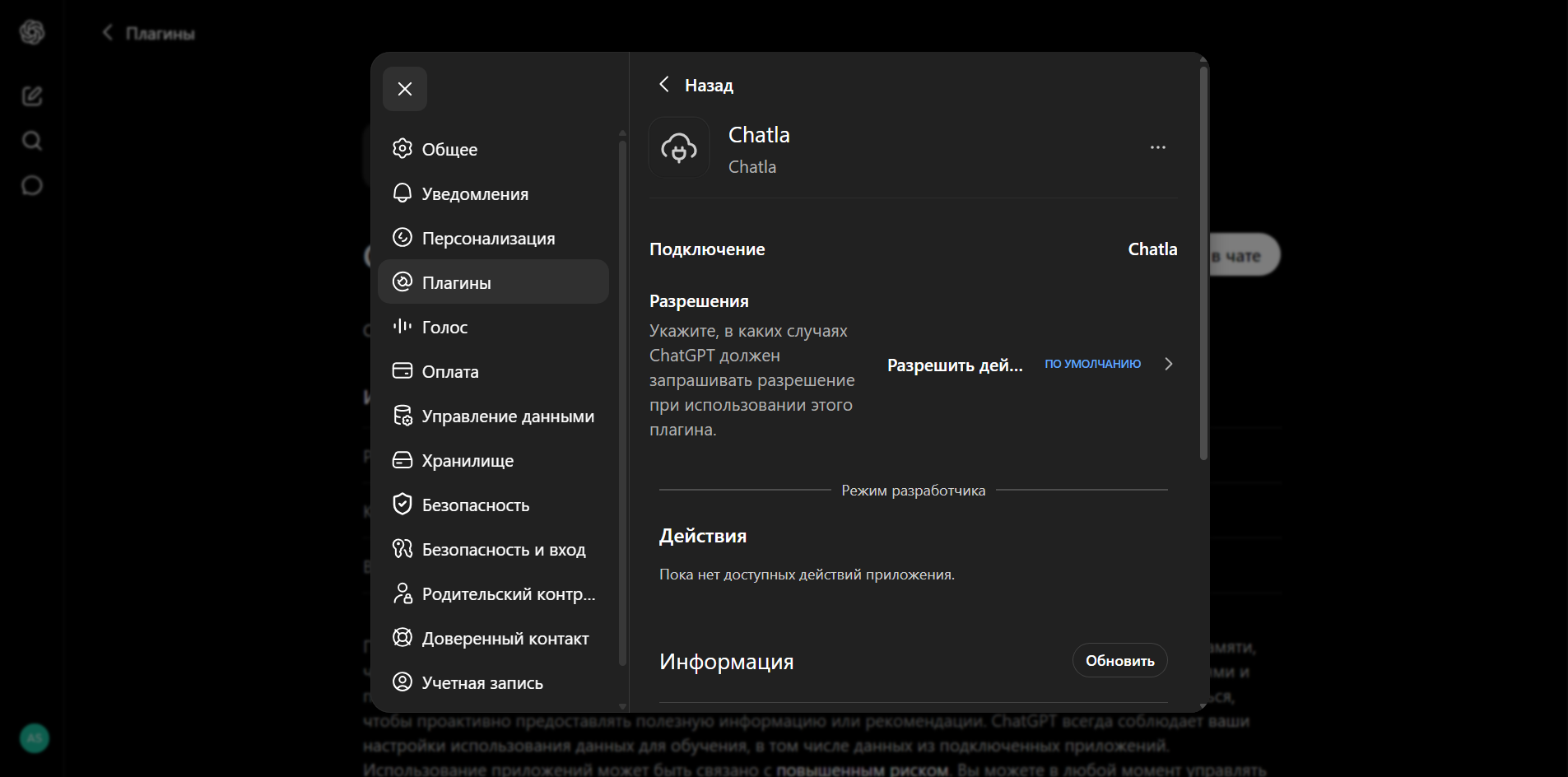
Done
The plugin page now shows «Connection: Chatla». Permissions are managed right there.
- 8
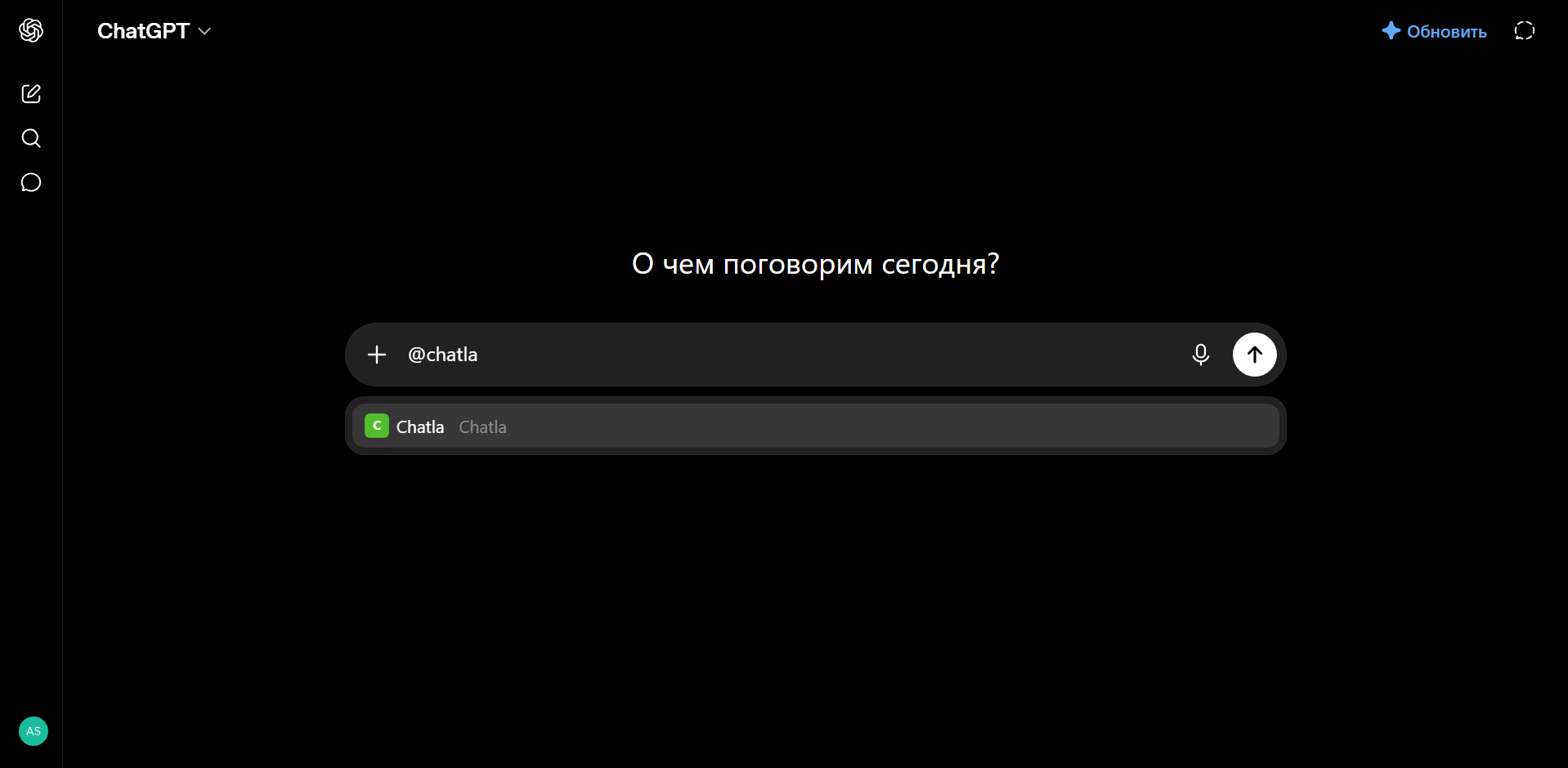
Call it in a chat
Type «@chatla» in the message box, pick Chatla from the list and add your request.
Most used actions
Fill the catalog
Product drafts from a price list, PDF or photo.
upsert_catalog_itemKnowledge base
Writes and tidies up question-answer topics.
add_topicsBusiness profile
Asks for what is missing and fills it in.
update_business_profileConversation review
Finds where the AI stumbled and proposes a fix.
get_ai_reportLeads
Shows new customers and updates their status.
update_lead_statusReply draft
Leaves a draft in the Inbox — you decide to send it.
draft_replyAll 49 actions
Every action works only with the data of the project you choose. The “writes” badge means the action changes data in Chatla.
Projects and business profile
list_projectsget_business_profileupdate_business_profilewriteslist_channels
Conversations (Inbox)
list_conversationsget_conversationsummarize_conversationdraft_replywritesset_conversation_statuswritestag_conversationwrites
Contacts and CRM
list_contactsget_contactcreate_contactwritesupdate_lead_statuswriteslist_contact_factsconfirm_factwritesarchive_factwritesget_funnel
Knowledge base and catalog
list_topicsadd_topicswritesupdate_topicwritesset_topic_statuswritesdelete_topicswriteslist_knowledgeadd_knowledgewritesupdate_knowledgewriteslist_catalogupsert_catalog_itemwrites
AI rules and quality
get_ai_rulesupdate_ai_ruleswritestest_ai_replyget_ai_reportflag_ai_replywrites
Instagram Reels automation
list_reelsget_reel_commentslist_reel_automationscreate_reel_automationwritesupdate_reel_automationwrites
Telegram channel posts (drafts)
list_contentlist_publish_channelslist_telegram_postsget_telegram_postcreate_telegram_postwritesupdate_telegram_postwritesdelete_telegram_postwrites
Analytics and billing
get_analyticsget_ai_usageget_balanceget_subscription
Ready-made prompts
- Here is my price list. Add it to my Chatla catalog: name, description, price, category. Show me the list first, add it after I confirm.
- Show my Chatla business profile, ask me for what is missing and fill it in.
- Pull 20 frequently asked questions with answers out of my website text and add them as topics to my knowledge base.
- Look at the last 7 days of conversations: where could the AI not answer? Tell me what to add, then add it.
- Show today's new leads, write a short summary for each and update their status.
- Prepare reply drafts for unanswered conversations — do not send them.
What you grant access to
- The connected app sees only the data of the project you authorised.
- It never messages customers or publishes anything — a reply stays as a draft in the Inbox.
- Customer names are masked in conversations; full names appear only in the Contacts section.
- You can disconnect at any time — the keys are revoked immediately.
The same address works in any MCP-compatible app — Claude Desktop, Cowork, MCP Inspector and others. The steps are alike: paste the address in the app's connector section, then pick a project in the Chatla window. The safety rules are identical.
Which plan includes it
MCP is available on the Pro and Business plans. The plan is chosen per project.
Frequently asked questions
Which AI apps does Chatla MCP work with?
Claude (web, Desktop and mobile), ChatGPT (via developer mode) and any other app that supports the MCP standard. The address is the same everywhere: https://chatla.uz/api/mcp.
Does the AI message my customers by itself?
No. A reply stays as a draft in the Inbox and you approve sending it. Telegram posts the AI creates are drafts as well.
Is the connection secure?
The connection uses OAuth: no password is shared, the AI sees only the project you authorised, and customer names are masked in conversations. You can disconnect any time from the dashboard and the keys are revoked immediately.
Can one connection manage several projects?
Yes. Choose “All my projects” on the consent screen and one connection sees all your projects; you name the project you mean in each request.
Which plan includes MCP?
The Pro and Business plans. If the plan does not include it, the AI app cannot complete the connection.